In this guide, we’ll walk through setting up a React Native project using Expo and organizing the folder structure for better manageability.

1. Install Expo with a Template
To create a new Expo app, run one of the following commands:
- To create the app in a specific folder
npx create-expo-app@latest nameofapp -t
- To install in the current directory:
npx create-expo-app@latest ./ -t
During setup, choose the navigation template to install with navigation tabs. Using down arrow and enter from keyboard in terminal
2. Organize Project Folders
To keep your project well-structured, follow these steps:
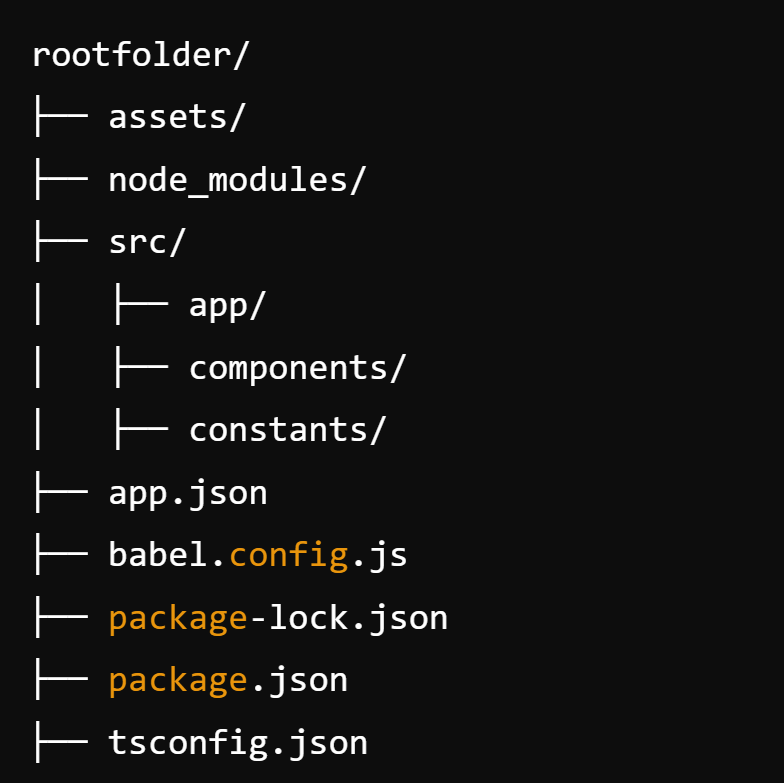
- Create a folder named
srcin the root directory. - Move the following folders inside the
srcfolder:appcomponentsconstants
Your project structure should now look like this:
3. Update Import Paths
Now, you need to update the file paths inside your project.
In the app folder, update any imports like:
@/components/EditScreenInfo
to
@/src/components/EditScreenInfo
Similarly, update any imports from:
@/constants/Colors
to
@/src/constants/Colors
In src/app/_layout.tsx, locate line 26, and modify the font import path:
SpaceMono: require(‘../assets/fonts/SpaceMono-Regular.ttf’),
to
SpaceMono: require(‘../../assets/fonts/SpaceMono-Regular.ttf’),
Check all files in the components folder for similar import path changes.
Make sure every file correctly imports components and constants from the updated locations.
4. Run the Project
To start the project, use the following command:
npm start
Then, scan the QR code displayed in the terminal with the Expo Go app on your Android device (available on the Play Store).

5. Customizing Assets
- Replace all default images in the
assets/images/folder with your own logos and images before building the APK. - Do not download or generate the
android/folder. We will be usingapp.jsonfor configuration.
By following these steps, you’ll have a clean and organized project structure that is easy to manage, and you’ll be ready to move forward with your React Native development using Expo.